How to Create a QR Code (Free, No App Required)
Generate a free QR code for any URL in seconds. Learn the difference between static and dynamic QR codes, best-practice sizes, and how to track scans.
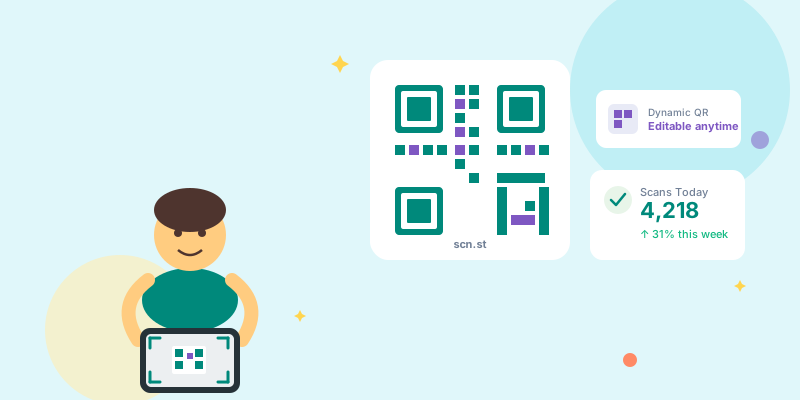
Creating a QR code takes about 30 seconds. Here's exactly how to do it — plus the details most guides skip: static vs dynamic, minimum print sizes, and how to track how many times your code is scanned.
How to create a QR code for free
- Go to scn.st and sign in (free account)
- Shorten or open any existing link in your dashboard
- Click the QR icon next to the link
- Download the QR code as PNG
Your QR code is ready. It will scan to the destination URL using any camera app on iOS or Android — no special QR reader needed.
Static QR codes vs dynamic QR codes
This is the most important decision when creating a QR code.
Static QR codes
The destination URL is encoded directly into the QR pattern. Changing the destination means creating a new code — so if you've already printed it, you're stuck.
Best for: One-off uses where the destination won't change (a personal website, a specific product page, a social profile).
Dynamic QR codes
The QR code points to a short link that redirects to your destination. You can change the destination any time without reprinting the code. Dynamic QR codes also track scan count, location, and device.
Best for: Print campaigns, packaging, restaurant menus, event materials — anywhere you might need to update the destination later.
QR code size guide
A QR code that's too small won't scan reliably. Use these minimums as a starting point:
| Use case | Minimum size |
|---|---|
| Business card | 2.5 cm × 2.5 cm (1") |
| Flyer / A5 | 3 cm × 3 cm (1.2") |
| Poster / A3 | 4 cm × 4 cm (1.6") |
| Banner / billboard | 10 cm × 10 cm (4") |
For scanning from a distance (e.g. a shop window), use 10× the expected scan distance as a rough guide — a poster viewed from 3 metres needs a code at least 30 cm wide.
Best practices for high-scan QR codes
Contrast matters
QR codes must have strong contrast between the dark modules and the background. Black on white is safest. Avoid dark-on-dark or reversed (white on black) without testing first.
Always test before printing
Scan your code with at least two different phones (iOS and Android) and in poor lighting before sending to print.
Add a call to action
A QR code alone doesn't tell people what they'll get. Add text like "Scan to see the menu" or "Scan for 20% off" nearby — it increases scan rates significantly.
Leave a quiet zone
QR codes need a white border (quiet zone) around all four sides — at least 4 modules of white space. Most exports from scn.st include this automatically.
How to track QR code scans
When you create a dynamic QR code via a scn.st short link, every scan is logged as a click. In your dashboard you can see:
- Total scans — all time, 7-day, 30-day
- Scan location — country and city
- Device type — iOS, Android, desktop
- Referrer — where the scan originated, if available
This tells you which physical locations or campaigns drive the most engagement — without any additional tracking setup.
QR codes for specific use cases
QR code for your social bio
Create a short link pointing to your scn.st bio page. Generate a QR code for that short link. Print it anywhere — people scan it and land on all your links at once.
QR code for a PDF or document
Upload your PDF to a cloud host (Google Drive, Dropbox), get a shareable link, shorten it on scn.st, then download the QR code. You can update the PDF later by swapping the destination URL — no reprint needed.
QR code for Wi-Fi
Wi-Fi QR codes use a special encoding format. scn.st currently supports URL-based QR codes only — use a dedicated Wi-Fi QR generator for that specific case.
Quick summary
- Shorten your URL — paste it into scn.st
- Click the QR icon — generates instantly alongside your short link
- Download PNG — ready for print or digital use
- Track scans — click analytics in your dashboard, no extra setup
Use dynamic codes (short link → QR) whenever you might need to change the destination or track real-world performance.
Ready to go beyond basics? See the complete QR code marketing strategies guide for campaign-level tactics, or the pricing page to see what dynamic QR features are included on each plan.